嵌入模型 (Embedding Model)
Langflow 中的嵌入模型组件使用指定的大语言模型 (LLM) 生成文本嵌入 (Embeddings)。
Langflow 包含一个 嵌入模型 (Embedding Model) 核心组件,该组件内置了对某些 LLM 的支持。 或者,您可以使用任何 额外的嵌入模型 来代替 嵌入模型 核心组件。
在流中使用嵌入模型组件
在流中任何需要生成嵌入的地方使用嵌入模型组件。
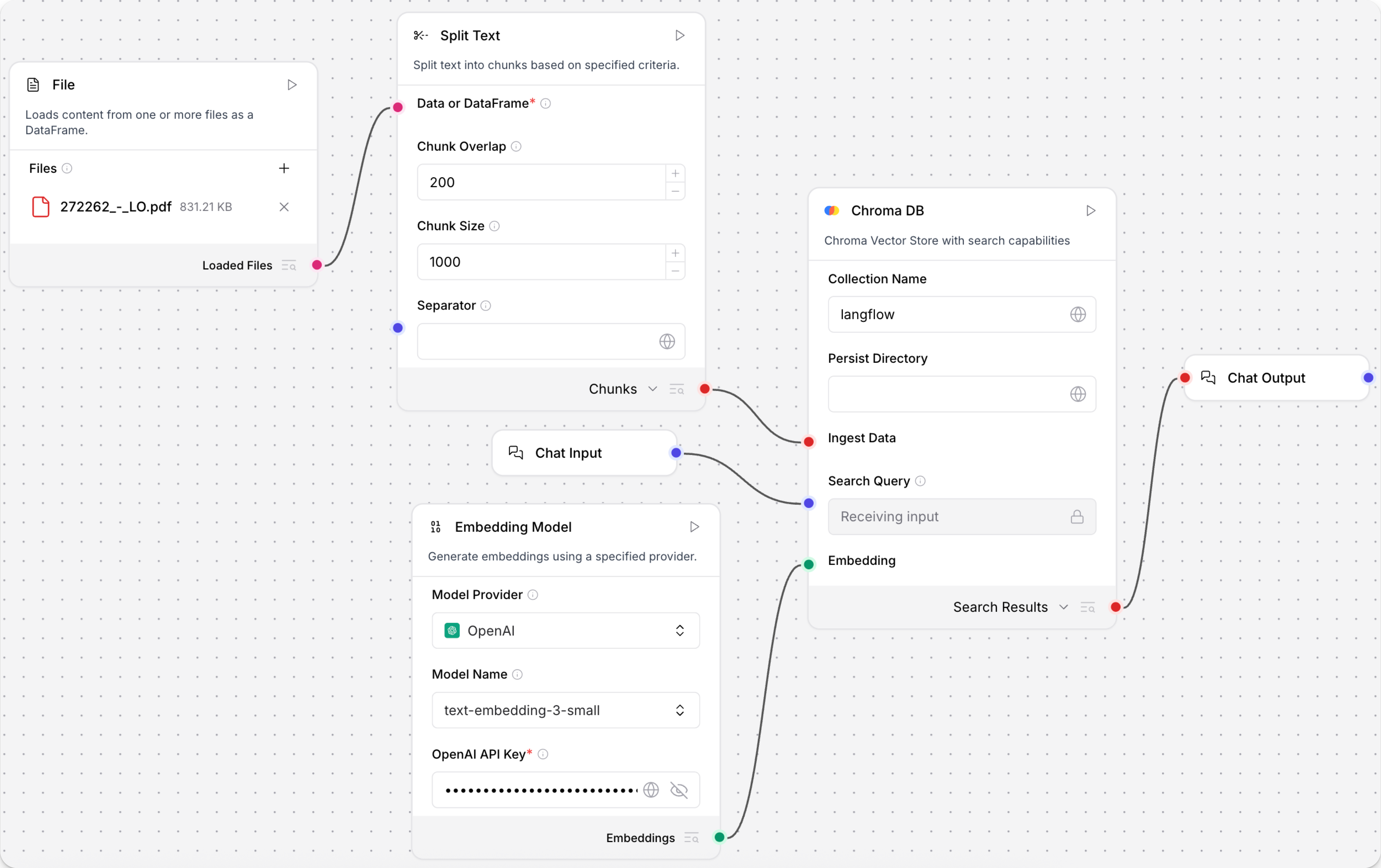
以下示例展示了如何在流中使用嵌入模型组件来创建一个语义搜索系统。 此流加载一个文本文件,将文本分割成块,为每个块生成嵌入,然后将块和嵌入加载到向量库中。输入和输出组件允许用户通过聊天界面查询向量库。
-
创建一个流,添加一个 读取文件 (Read File) 组件,然后选择一个包含文本数据(如 PDF)的文件来测试流。
-
添加 嵌入模型 (Embedding Model) 核心组件,并提供有效的 OpenAI API 密钥。 您可以直接输入 API 密钥,也可以使用 全局变量。
我偏好的提供商或模型未列出如果您偏好的嵌入模型提供商或模型不受 嵌入模型 核心组件支持,您可以使用任何 额外的嵌入模型 来代替核心组件。
浏览 捆绑包 (Bundles) 或 搜索 您偏好的提供商,以找到额外的嵌入模型,例如 Hugging Face Embeddings Inference 组件.
-
向您的流添加一个 分割文本 (Split Text) 组件 。 此组件将文本输入分割成较小的块,以便处理成嵌入。
-
向您的流添加一个向量库组件,例如 Chroma DB 组件,然后配置该组件以连接到您的向量数据库。 此组件存储生成的嵌入,以便用于相似度搜索。
-
连接组件:
- 将 读取文件 组件的 加载的文件 (Loaded Files) 输出连接到 分割文本 组件的 数据或 DataFrame (Data or DataFrame) 输入。
- 将 分割文本 组件的 分块 (Chunks) 输出连接到向量库组件的 摄取数据 (Ingest Data) 输入。
- 将 嵌入模型 组件的 嵌入 (Embeddings) 输出连接到向量库组件的 嵌入 (Embedding) 输入。
-
要查询向量库,请添加 聊天输入与输出 (Chat Input and Output) 组件:
- 将 聊天输入 组件连接到向量库组件的 查询词 (Search Query) 输入。
- 将向量库组件的 搜索结果 (Search Results) 输出连接到 聊天输出 组件。
-
点击 游乐场 (Playground),然后输入搜索查询,以检索与您的查询语义最相似的文本块。
嵌入模型参数
以下参数适用于 嵌入模型 (Embedding Model) 核心组件。 其他嵌入模型组件可能具有额外或不同的参数。
Some parameters are hidden by default in the visual editor. You can modify all parameters through the Controls in the component's header menu.
| 名称 | 显示名称 | 类型 | 描述 |
|---|---|---|---|
| provider | 模型提供商 (Model Provider) | List | 输入参数。选择嵌入模型提供商。 |
| model | 模型名称 (Model Name) | List | 输入参数。选择要使用的嵌入模型。 |
| api_key | OpenAI API 密钥 | Secret[String] | 输入参数。用于向提供商进行身份验证所需的 API 密钥。 |
| api_base | API 基础 URL | String | 输入参数。API 的基础 URL。留空则使用默认值。 |
| dimensions | 维度 (Dimensions) | Integer | 输入参数。输出嵌入的维度数量。 |
| chunk_size | 分块大小 (Chunk Size) | Integer | 输入参数。要处理的文本块大小。默认值:1000。 |
| request_timeout | 请求超时 (Request Timeout) | Float | 输入参数。API 请求的超时时间。 |
| max_retries | 最大重试次数 (Max Retries) | Integer | 输入参数。最大重试尝试次数。默认值:3。 |
| show_progress_bar | 显示进度条 (Show Progress Bar) | Boolean | 输入参数。是否在嵌入生成期间显示进度条。 |
| model_kwargs | 模型关键字参数 (Model Kwargs) | Dictionary | 输入参数。要传递给模型的额外关键字参数。 |
| embeddings | 嵌入 (Embeddings) | Embeddings | 输出参数。用于使用所选提供商生成嵌入的实例。 |
额外的嵌入模型
如果您的提供商或模型不受 嵌入模型 核心组件支持,您可以用任何其他生成嵌入的组件替换此组件。
要查找额外的嵌入模型组件,请浏览 捆绑包 (Bundles) 或 搜索 您偏好的提供商。
将模型与向量库配对
By design, vector data is essential for LLM applications, such as chatbots and agents.
While you can use an LLM alone for generic chat interactions and common tasks, you can take your application to the next level with context sensitivity (such as RAG) and custom datasets (such as internal business data). This often requires integrating vector databases and vector searches that provide the additional context and define meaningful queries.
Langflow includes vector store components that can read and write vector data, including embedding storage, similarity search, Graph RAG traversals, and dedicated search instances like OpenSearch. Because of their interdependent functionality, it is common to use vector store, language model, and embedding model components in the same flow or in a series of dependent flows.
To find available vector store components, browse Bundles or Search for your preferred vector database provider.
示例:向量搜索流
For a tutorial that uses vector data in a flow, see Create a vector RAG chatbot.
The following example demonstrates how to use vector store components in flows alongside related components like embedding model and language model components. These steps walk through important configuration details, functionality, and best practices for using these components effectively. This is only one example; it isn't a prescriptive guide to all possible use cases or configurations.
-
Create a flow with the Vector Store RAG template.
This template has two subflows. The Load Data subflow loads embeddings and content into a vector database, and the Retriever subflow runs a vector search to retrieve relevant context based on a user's query.
-
Configure the database connection for both Astra DB components, or replace them with another pair of vector store components of your choice. Make sure the components connect to the same vector store, and that the component in the Retriever subflow is able to run a similarity search.
The parameters you set in each vector store component depend on the component's role in your flow. In this example, the Load Data subflow writes to the vector store, whereas the Retriever subflow reads from the vector store. Therefore, search-related parameters are only relevant to the Vector Search component in the Retriever subflow.
For information about specific parameters, see the documentation for your chosen vector store component.
-
To configure the embedding model, do one of the following:
-
Use an OpenAI model: In both OpenAI Embeddings components, enter your OpenAI API key. You can use the default model or select a different OpenAI embedding model.
-
Use another provider: Replace the OpenAI Embeddings components with another pair of embedding model components of your choice, and then configure the parameters and credentials accordingly.
-
Use Astra DB vectorize: If you are using an Astra DB vector store that has a vectorize integration, you can remove both OpenAI Embeddings components. If you do this, the vectorize integration automatically generates embeddings from the Ingest Data (in the Load Data subflow) and Search Query (in the Retriever subflow).
提示If your vector store already contains embeddings, make sure your embedding model components use the same model as your previous embeddings. Mixing embedding models in the same vector store can produce inaccurate search results.
-
-
Recommended: In the Split Text component, optimize the chunking settings for your embedding model. For example, if your embedding model has a token limit of 512, then the Chunk Size parameter must not exceed that limit.
Additionally, because the Retriever subflow passes the chat input directly to the vector store component for vector search, make sure that your chat input string doesn't exceed your embedding model's limits. For this example, you can enter a query that is within the limits; however, in a production environment, you might need to implement additional checks or preprocessing steps to ensure compliance. For example, use additional components to prepare the chat input before running the vector search, or enforce chat input limits in your application code.
-
In the Language Model component, enter your OpenAI API key, or select a different provider and model to use for the chat portion of the flow.
-
Run the Load Data subflow to populate your vector store. In the Read File component, select one or more files, and then click Run component on the vector store component in the Load Data subflow.
The Load Data subflow loads files from your local machine, chunks them, generates embeddings for the chunks, and then stores the chunks and their embeddings in the vector database.
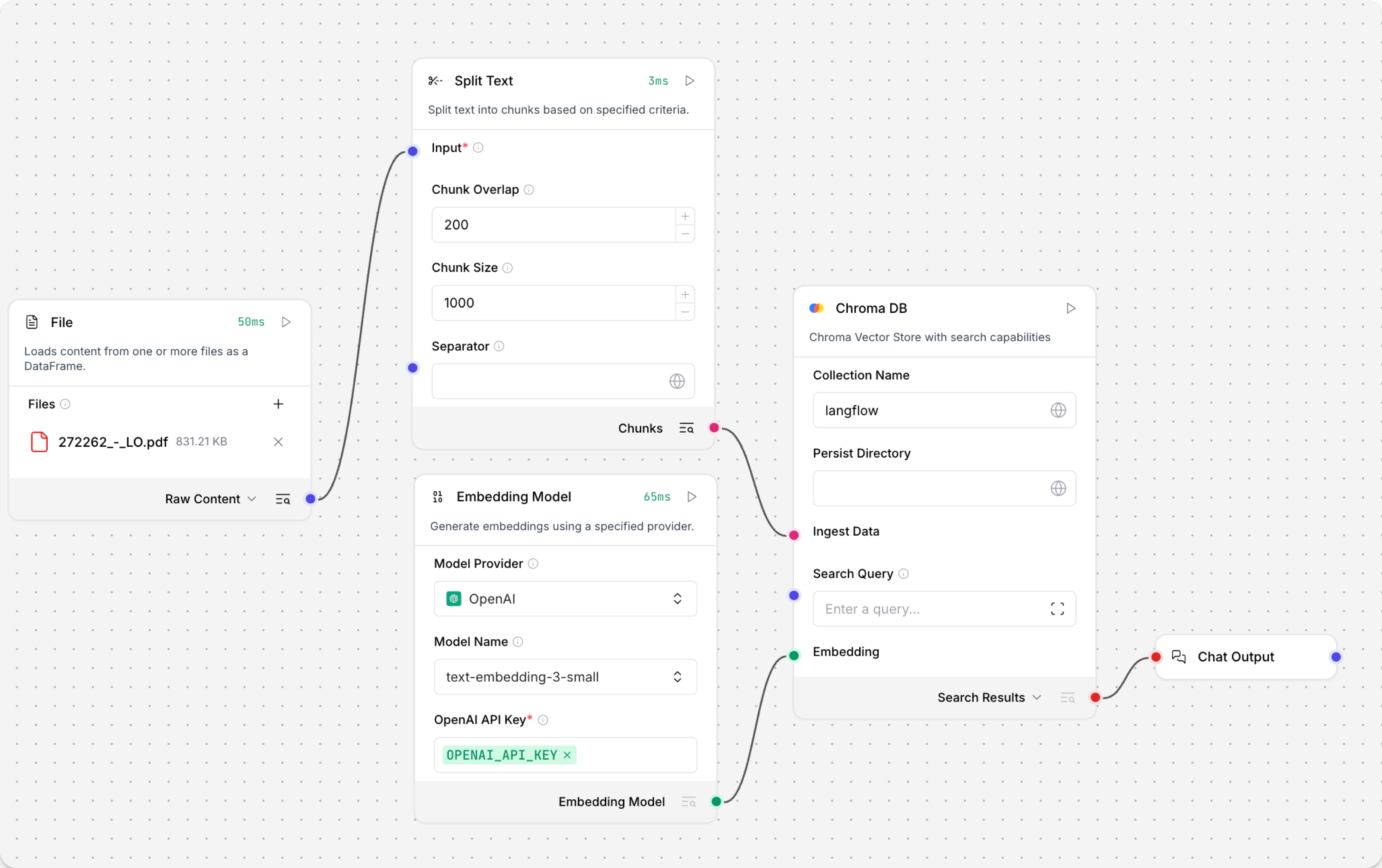
The Load Data subflow is separate from the Retriever subflow because you probably won't run it every time you use the chat. You can run the Load Data subflow as needed to preload or update the data in your vector store. Then, your chat interactions only use the components that are necessary for chat.
If your vector store already contains data that you want to use for vector search, then you don't need to run the Load Data subflow.
-
Open the Playground and start chatting to run the Retriever subflow.
The Retriever subflow generates an embedding from chat input, runs a vector search to retrieve similar content from your vector store, parses the search results into supplemental context for the LLM, and then uses the LLM to generate a natural language response to your query. The LLM uses the vector search results along with its internal training data and tools, such as basic web search and datetime information, to produce the response.
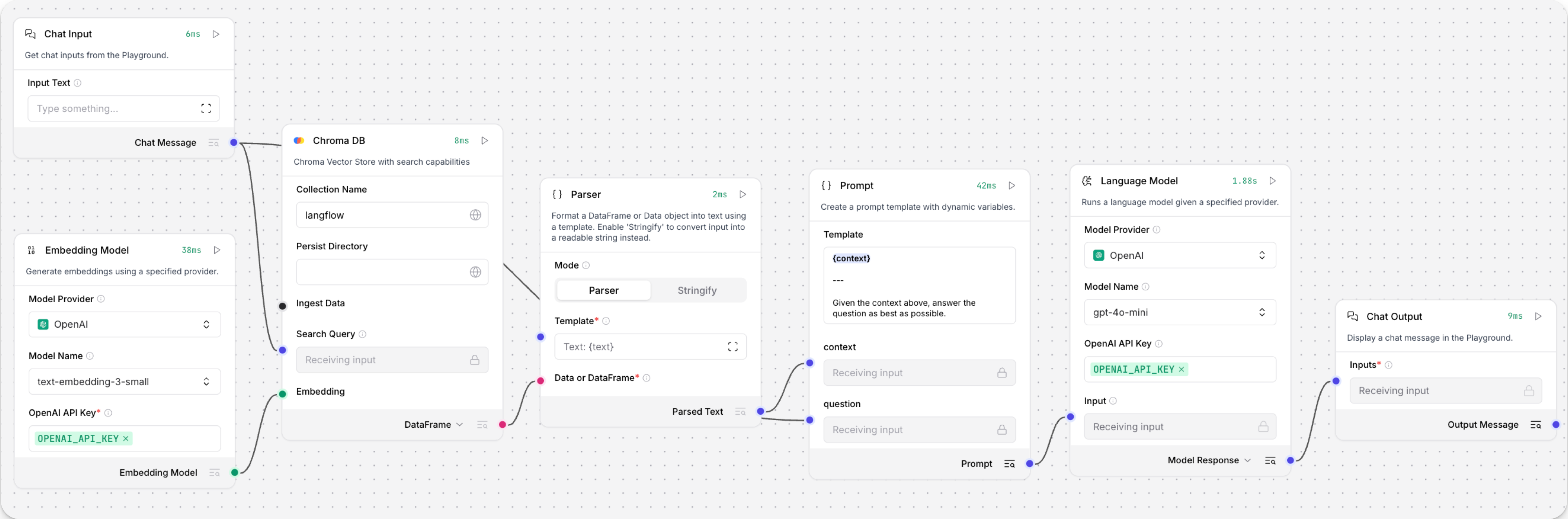
To avoid passing the entire block of raw search results to the LLM, the Parser component extracts
textstrings from the search resultsDataobject, and then passes them to the Prompt Template component inMessageformat. From there, the strings and other template content are compiled into natural language instructions for the LLM.You can use other components for this transformation, such as the Data Operations component, depending on how you want to use the search results.
To view the raw search results, click Inspect output on the vector store component after running the Retriever subflow.